


02 November 2026
|
8:10:45
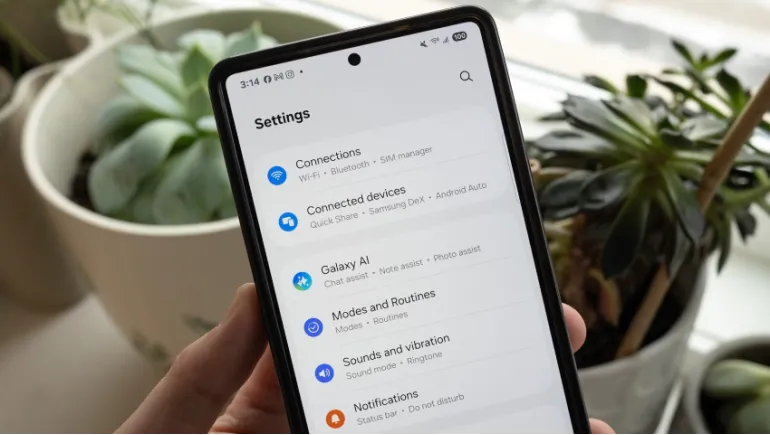
After buying a new phone, update the software, lock the device, turn on cloud backup, review app permissions, control notifications, tune battery settings, adjust the display, and enable Find My Device. These eight changes take about 15 minutes and make your phone safer, faster, and more comfortable to use.
A new phone works out of the box, but the default settings rarely suit you. Manufacturers favor flashy features over privacy and battery life. This new phone setup guide walks you through the eight most important new smartphone settings. It works for both Android and iPhone, and it suits beginners and experienced users alike.
Default settings collect more data, send more alerts, and drain more power than most people need. Changing a few options gives you better security, longer battery life, and a cleaner experience. You also avoid common problems before they start.
Your phone may have sat in a warehouse for months. It likely needs updates the moment you turn it on.
Each update brings a security patch that closes known weaknesses. Updates also fix bugs and improve performance. On Android, open Settings > System > Software update (the wording varies by brand). On iPhone, open Settings > General > Software Update. Turn on automatic updates so you never fall behind.
Your phone holds your bank apps, photos, and messages. Protect it with layers.
Use a six-digit PIN or a long passcode. Add fingerprint or face unlock for convenience. Avoid simple patterns and birth dates.
Two-factor authentication (2FA) adds a second step when you sign in. Enable it for your Google or Apple account first, then for email, banking, and social media. Use an authenticator app instead of text messages when you can. Authenticator apps resist SIM-swap attacks better.
Cloud backup protects your photos, contacts, and app data if you lose or break your phone. On Android, use Google One backup. On iPhone, use iCloud Backup. Check that your photos sync, too. Free storage fills up fast, so consider a paid plan if you take many photos and videos.
These are the most important phone privacy settings. Many apps ask for more access than they need. A flashlight app does not need your contacts.
Open the permission manager on Android (Settings > Privacy) or Settings > Privacy & Security on iPhone. Then follow these rules:
Also turn off ad personalization. On Android, find it under Google settings. On iPhone, use the App Tracking Transparency option to ask apps not to track you.
Constant alerts distract you and waste battery. If you want to know how to stop unnecessary notifications on Android, start with this approach.
This one habit makes a new phone feel calmer right away.
Good smartphone battery settings can add hours to your day. Here is how to improve battery life on a new phone without hurting performance.
Check your battery usage after a few days. If one app drains more than expected, restrict it or remove it.
The screen uses more power than any other part of your phone. These are the best display settings for a new smartphone.
Adaptive brightness changes screen brightness to match the light around you. It saves power and protects your eyes. Leave it on and fine-tune it for a few days so the phone learns your habits.
Set the screen timeout to 30 seconds or one minute. A long timeout wastes battery and exposes your screen to other people.
Many new phones run at 90Hz or 120Hz. Smooth scrolling looks great, but it uses more power. If battery life matters most, switch to standard mode or an adaptive setting. Also try dark mode and a night light or blue light filter for evening use.
This setting helps you locate, lock, or erase a lost phone. On Android, turn on Find Hub (formerly Find My Device) in your Google settings. On iPhone, turn on Find My under your Apple ID. Both services work only if you enable them before the phone goes missing. This simple step is one of the strongest forms of device protection.
Once the essentials are done, make the phone yours. Android customization and smartphone personalization options include wallpapers, icon packs, gesture navigation, and default apps. Arrange your home screen so your most-used apps sit within thumb reach. Personal touches make a new device feel familiar.
| Setting | Android | iPhone |
|---|---|---|
| Updates | System > Software update | General > Software Update |
| Backup | Google One backup | iCloud Backup |
| Privacy controls | Privacy > Permission manager | Privacy & Security |
| Battery | Adaptive Battery | Low Power Mode |
| Lost device | Find Hub | Find My |
Start with software updates, screen lock and two-factor authentication, cloud backup, app permissions, notifications, battery settings, display settings, and Find My Device.
Update the software, sign in to your account, restore or back up your data, and secure the device. Then review privacy, notification, and battery settings.
Limit location access, deny unneeded permissions, turn off ad personalization, and use a strong screen lock. Review these settings every few months.
Install security patches, use a strong PIN, enable two-factor authentication, and download apps only from the official Google Play Store or Apple App Store.
Defaults work, but they often favor data sharing and convenience over privacy and battery life. A quick review gives you better control.
A new phone deserves a few minutes of setup. Update the software, protect your accounts, back up your data, and trim notifications and permissions. Then tune the battery and display to fit your daily routine. These simple Android tips and tricks and iPhone habits keep your device secure, fast, and comfortable for years.
Menu names and options differ between brands, such as Samsung, Google Pixel, Xiaomi, and Apple, and between software versions. Check your phone's official support page for exact steps.









Comments
There are no comments for this Article.