




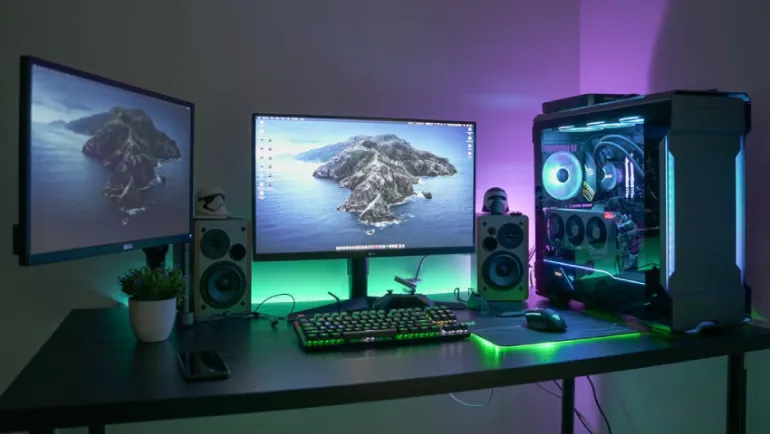
To set up a new PC, finish the first-run setup, update Windows, install drivers, turn on security, remove unwanted apps, tune performance, back up your files, personalise settings, and install essential software. Plan for one to two hours.
Why a Proper New PC Setup Matters
A new computer is not fully ready out of the box. It may have pending updates, trial software, and default settings that do not fit your needs. A good Windows PC setup makes your machine faster, safer, and easier to use.
These 10 tips work for desktops and for any new laptop setup guide. The menu names may change slightly between Windows versions, but the order stays the same. If a menu looks different, use the Settings search box.
Tip 1: Complete the First-Run Setup
Turn on your PC and follow the prompts. Windows asks for your region, language, keyboard layout, and Wi-Fi network. Connect to the internet if you can, because the next steps need it.
Microsoft Account Setup or Local Account Setup
Most new PCs ask you to sign in with a Microsoft account. This account syncs settings, supports OneDrive, and helps you recover a lost password. It suits people who use more than one device.
A local account stays on your PC only. It offers more privacy but fewer online features. Microsoft changes the sign-in rules from time to time, so follow the options you see on screen.
Check Windows Activation
Most new PCs arrive with Windows already activated. Open Settings, find the Activation page, and confirm the status. If it says "Active," you are done.
Tip 2: Run Windows Update
Windows updates fix bugs, improve stability, and close security holes. A new PC may sit in a warehouse for months, so it often needs many updates.
- Open Settings and go to Windows Update.
- Select Check for updates.
- Install everything and restart.
- Repeat until no updates remain.
Turn on automatic updates so future patches install without effort.
Tip 3: Install and Update PC Drivers
Drivers help Windows work with your hardware. Windows Update installs most of them. Also check the optional updates section for extra driver updates.
For the newest versions, visit your PC maker's support page. Graphics drivers from NVIDIA, AMD, or Intel matter most for gaming and creative work. Always download drivers from official sites only.
Tip 4: Secure Your New PC
Windows security starts with tools that are already built in. Open the Windows Security app and review each area.
- Microsoft Defender Antivirus: It scans for viruses and malware in real time. Many users find it a solid free option.
- Windows Firewall: It blocks unwanted network traffic. Keep it on.
- Sign-in protection: Set a strong password or PIN. Use Windows Hello if your PC supports it.
- Two-step verification: Turn it on for your Microsoft account and email.
You can add a trusted third-party antivirus if you want extra features. Do not run two full antivirus programs at once, because they can conflict.
Tip 5: Remove Unnecessary Apps
New PCs often include trial software and extra apps. This clutter uses storage and may slow startup.
Open Settings, go to Apps, and review the installed list. Remove trials and tools you will never use. Keep apps from your PC maker that manage drivers, firmware, or battery health.
Tip 6: Optimise Your New PC for Better Performance
A few small changes make a new PC faster right away.
Manage Startup Apps
Open the Startup page in Settings. Turn off apps you do not need at sign-in. Fewer startup apps mean a quicker boot and a smoother start.
Adjust Display and Power Settings
Set the right screen resolution, scaling, and refresh rate. Then pick a power mode that fits your needs. Balanced works well for most people. On a laptop, use shorter screen timeouts to save battery.
Turn On Storage Sense
Storage Sense clears temporary files automatically. Find it in the Storage settings and switch it on. It keeps your drive tidy with no extra effort.
Tip 7: Set Up Backup and Recovery
Do this early. Do not wait for a problem.
Create a Backup
Use OneDrive backup or the Windows backup settings to protect your Desktop, Documents, and Pictures folders. Free cloud space is limited, so check your plan first. For important files, keep a second copy on an external drive.
Create a System Restore Point
Search for "Create a restore point." Turn on system protection for your main drive, then make a restore point. If a bad update or driver causes trouble, you can roll back.
Know Your Windows Recovery Options
Find the Recovery page in Settings. It lists options such as resetting your PC. Knowing where it is saves time in an emergency.
Tip 8: Personalise Your PC
Make the PC feel like yours.
- Appearance: Choose a theme, wallpaper, and light or dark mode.
- Taskbar and Start menu: Pin your favourite apps and remove the rest.
- File Explorer settings: Show file extensions. This helps you spot suspicious files.
- Default app settings: Choose your preferred browser, PDF reader, and media player.
Tip 9: Install Essential Software
Install only what you need. Download from official websites or the Microsoft Store to avoid fake or bundled installers.
| Category | What to look for | Common choices |
|---|---|---|
| Web browser | Speed, privacy, sync | Microsoft Edge, Google Chrome, Mozilla Firefox |
| Office suite | Documents and spreadsheets | Microsoft 365, LibreOffice |
| PDF reader | Viewing and signing | Adobe Acrobat Reader, SumatraPDF |
| Media player | Wide format support | VLC Media Player |
| File compression | ZIP and RAR support | 7-Zip, WinRAR |
| Cloud storage | Sync across devices | OneDrive, Google Drive, Dropbox |
| Password manager | Strong, unique passwords | Bitwarden, 1Password |
| Video conferencing | Calls and meetings | Zoom, Microsoft Teams, Google Meet |
These are well-known options, not the only ones. Choose the tools that match your needs and budget.
Tip 10: Tailor the PC for Work and Study
Sign in to your email, calendar, and chat apps. Install your office suite and activate it. Set up your printer and any VPN your workplace or school needs. Add a password manager and use it for every key account. Create separate folders for work, study, and personal files so you can find things fast.
New PC Setup Checklist
- Finish the first-run setup and sign in.
- Check Windows activation.
- Run Windows Update until it finishes.
- Install drivers.
- Review Windows Security, Defender, and Firewall.
- Remove unneeded apps.
- Manage startup apps, power, and storage settings.
- Set up backup and a restore point.
- Personalise your settings.
- Install your essential apps.
A good PC setup takes only an hour or two. Update first, secure the machine, clear the clutter, set up backups, and then add your apps. These habits give you a faster, safer computer that lasts for years.
Frequently Asked Questions
What should I do first when I get a new computer?
Connect to the internet, finish the first-run setup, and run Windows Update.
How do I make a new PC faster?
Remove extra apps, limit startup apps, keep Windows updated, and turn on Storage Sense.
Do I need to buy antivirus for a new Windows PC?
Not always. Microsoft Defender gives solid built-in protection for many users.
How do I back up a new computer?
Use OneDrive or the Windows backup settings for key folders. Add an external drive for a second copy.
Should I choose a Microsoft account or a local account?
Choose a Microsoft account for syncing and recovery. Choose a local account if you value privacy over features.










Comments
There are no comments for this Article.