



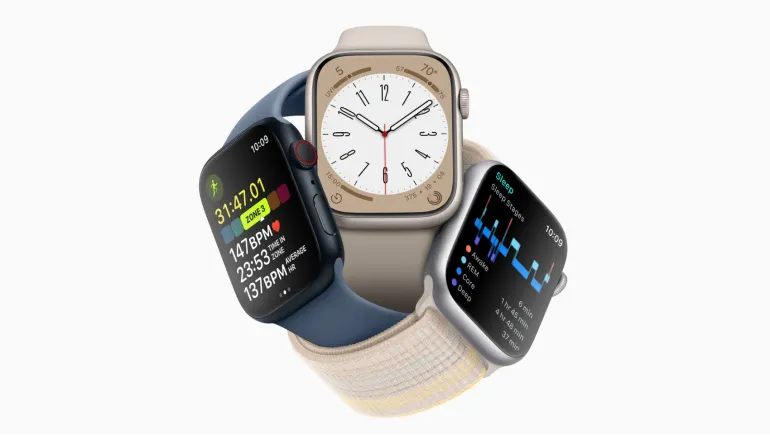
Five useful hidden Apple Watch features are Double Tap, Water Lock, Camera Remote, Cover to Mute with Theater Mode, and Ping iPhone. Each one takes seconds to learn and saves time every day.
Why Hidden Apple Watch Features Matter
Many people buy an Apple Watch for fitness and notifications. Then they stop exploring. That is a pity, because the watch has many small tools that make life easier.
This Apple Watch guide covers five lesser-known features. They work on many models, though some need a newer watch or a recent watchOS update. Check Apple's official support pages for your exact model, because features change with software updates.
Feature 1: Double Tap, Control Your Watch With One Hand
Double Tap lets you control the watch without touching the screen. You tap your index finger and thumb together twice. The watch senses the movement and runs the main action on screen.
What Can Double Tap Do?
- Answer or end a phone call
- Pause or resume music
- Snooze an alarm
- Stop a timer
- Scroll through widgets
How to Turn It On
Open Settings on your watch and look for the Gestures section. Switch on Double Tap there. Double Tap works on newer models, so confirm support for your watch before you rely on it.
Why It Helps
This feature shines when your other hand is busy. Think of carrying shopping bags, holding a pet leash, or washing dishes. It is one of the most useful Apple Watch features for daily life.
Feature 2: Water Lock, Protect and Clear Your Watch
Water Lock turns off the touchscreen so water drops cannot trigger random taps. It is helpful when you swim, shower, or wash your hands.
How to Use Water Lock
- Press the Side button to open Control Center.
- Tap the water drop icon.
- Swim or wash your hands.
- Turn the Digital Crown when you finish.
The watch then plays sounds to push water out of the speaker. This is a clever Apple Watch trick that many owners never try.
A Quick Reminder
All Apple Watch models resist water to a degree, but ratings differ by model. Check your model's water resistance rating before swimming. Rinse the watch with fresh water after use in salt water.
Feature 3: Camera Remote, Use Your Watch as a Shutter Button
Your Apple Watch can act as a remote for your iPhone camera. This is great for group photos, family shots, and solo travel pictures.
How to Use Camera Remote
- Place your iPhone where you want it.
- Open the Camera Remote app on your watch.
- Check the live preview on your wrist.
- Tap the shutter button.
You can also set a short timer. That gives you time to step into the frame. This feature is easy to learn and saves you from asking strangers for help.
Feature 4: Cover to Mute and Theater Mode
An unexpected alarm in a quiet room feels awful. Apple Watch has two simple tools to prevent it.
Cover to Mute
When an alert sounds, cover the watch face with your palm for a few seconds. The watch mutes the sound. You feel a tap instead. Turn on this option in the watch settings under Sounds and Haptics.
Theater Mode
Open Control Center and tap the theater masks icon. Theater Mode silences sounds and keeps the screen dark until you tap it or press a button. Use it in cinemas, meetings, and bedrooms.
Together, these tools keep your watch polite and your alerts private.
Feature 5: Ping iPhone and Flashlight
Lost your phone at home? Open Control Center on your watch and tap the phone icon. Your iPhone plays a loud sound so you can find it. In many cases, you can also use the flash option to blink the phone's light in the dark.
Your watch also has a built-in flashlight. Open Control Center and tap the flashlight icon. The screen turns bright white. Swipe to switch between steady, flashing, and red modes. The red mode helps you keep your night vision.
These two small tools solve common daily problems in seconds.
Apple Watch Tips for Everyday Use
Try these quick extras to get more out of your Apple Watch:
- Customise Control Center. Move your favourite tools to the top.
- Use Focus modes. Mute notifications during work, sleep, or driving.
- Create custom watch faces. Add complications for weather, timers, and activity rings.
- Review notification settings. Turn off alerts from apps you do not need.
- Turn on Fall Detection and Emergency SOS. Both are available in the settings and can help in an emergency.
Which Apple Watch Should You Choose?
Decide based on how you plan to use it.
| Need | What to consider | Good fit |
|---|---|---|
| First smartwatch on a budget | Core features at a lower price | Apple Watch SE |
| Everyday use and health tracking | Strong sensors and a bright screen | Apple Watch Series |
| Outdoor sports and long battery | Large, tough design with extra features | Apple Watch Ultra |
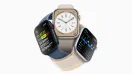
Model names and features change each year. Compare the current lineup on Apple's website before you buy. Newer models usually support the latest gestures and health tools for longer. If a feature in this guide matters to you, check that your model supports it.
Your Apple Watch can do much more than count steps. Try Double Tap, Water Lock, Camera Remote, Cover to Mute, and Ping iPhone this week. Each one is simple, and each one makes daily life a little easier. Keep your watch updated, and explore the settings often. New features arrive with every watchOS release.
Frequently Asked Questions
What is the best hidden Apple Watch feature?
Many users love Double Tap. It lets you control the watch with one hand.
Does every Apple Watch support all of these features?
No. Some features need a newer model or a recent watchOS update. Check Apple's support page for your watch.
How do I use Water Lock?
Open Control Center, tap the water drop icon, and turn the Digital Crown when you finish.
Can I take photos with my Apple Watch?
Yes. Use the Camera Remote app to control your iPhone camera from your wrist.
How do I mute my Apple Watch quickly?
Cover the screen with your palm, or turn on Theater Mode in Control Center.






Comments
There are no comments for this Article.